Templates
Templates represent containers that hold a collection of various layouts.
Creating a Template
- Under the
containerfolder within the map's assets folder in the Workspace, add a ground asset that will be used to place different layouts on top of.
Ground assets should be included within Dejavu's asset folder in Replicated Storage.
- To tell Dejavu we want to add a layout to this template, create a folder under the ground asset with the name of the layout.
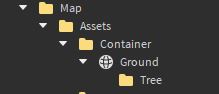
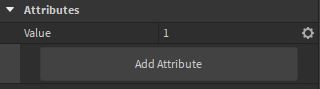
- Next, we need to add one of the configurations from the layout we chose. To do this, add a string attribute to the layout folder we just created called "Value". Set the value of "Value" to be the specific layout configuration we want on this template. For example, I chose the first configuration of trees.
View
Next, we need to save the layouts and their configuration to their corresponding template. To do this, run the following command in the command bar:
Dejavu.save()
Now that the template is saved, we can load the map. To do so, run the following command in the command line:
Dejavu.load()
This wraps up the basics on how to use Dejavu.
Closing
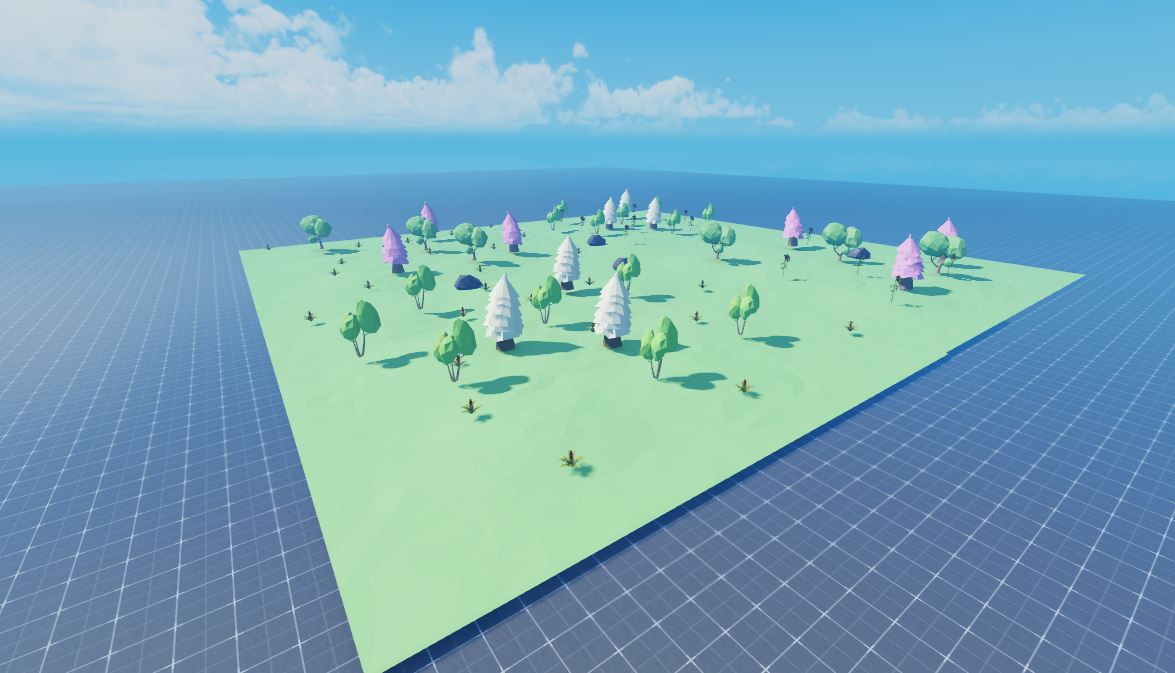
As you can see, we can use this creation process of different layout configurations on templates to create a variety of unique looking features without having to manually create each one. Here's a collection of templates that feature tree, flower, and rock layouts to demonstrate the use of multiple layouts. If you look closely, you can see that the collection of templates are made out of 2 identical layouts (hence the name DejaVu). With each new layout and configuration added, these faint similarities will no longer be visible to the player!
To learn about additional features and the best ways to use Dejavu-created maps in-game, check out Next Steps