Layouts
Layouts serve as the components that we will use to mix and match to create a variety of unique templates.
Creating a Layout
Create a folder under
Good Naming:Layoutswithin the Workspace. The name of your folder should correspond to a family of similar assets, rather than a single asset.Bad Naming:Tree
FlowerOak
TulipLayout NamingLayout names must be unique!
Create a module script under
Templateswithin the map's data folder in the Workspace with your chosen layout name.Create a folder under
Assetswithin theDejavufolder in Replicated Storage. This is where your assets that correspond to that layout will be stored for Dejavu to retrieve.
Configuration
Next, it's time to create different configurations for the layout we just created. For each configuration we make, we must use a ground asset as a reference. This can be a mesh or a part.
Place the ground asset within the layout folder we just created, and name it numerically based on how many configurations are already present (1 if none, 2 if one already exists, etc).
Next, it's time to start designing. Position your assets in different ways for each configuration to add variety.
After configuration, your layouts folder should look like this for the example provided:
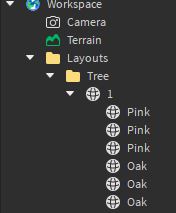
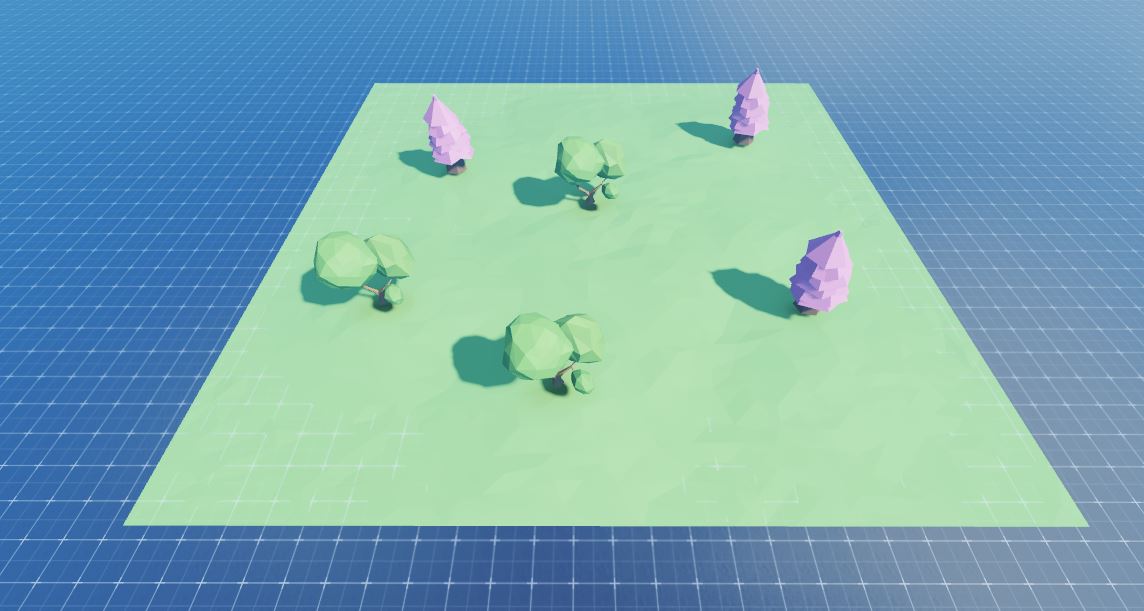
Once we are complete, we have to save the layout we just created, as well as its configuration. To accomplish this, we can run the following code from the command line. (In my case, layoutName would be "Tree", as I created a tree layout)
Dejavu.setLayout(layoutName: string)
Next, we'll learn how to display different layouts together to form a Template